Effort Calculator
Calculate your card's potential efforts with automatic detection and interactive quality selection
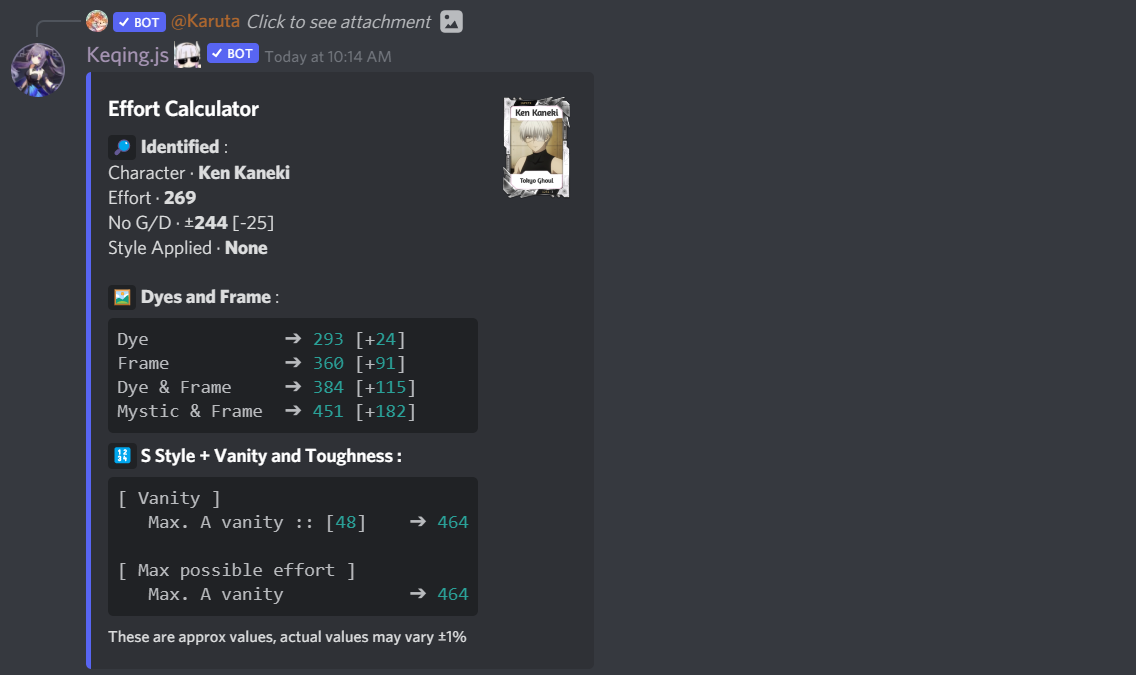
Calculate your card's potential effort values, dye effects, and upgrade paths. The bot automatically detects Karuta worker details and provides comprehensive effort analysis including vanity and toughness projections.
How to Use
There are two main ways to use the effort calculator, with interactive quality selection available for both when needed:
Method 1: Automatic Response (Recommended)
The bot automatically responds to Karuta worker details in specially named channels:
- 1
Create a Special Channel
Create a channel with one of these keywords in the name:
keqing(e.g.,#keqing-bot,#keqing-effort)effort(e.g.,#effort-calculator,#card-effort)management(e.g.,#karuta-management,#card-management)
- 2
Configure Permissions
Make sure @Keqing has the following permissions:
- Send Messages - To reply with calculations
- Read Messages - To detect worker details
- Read Message History - To access message content
- Embed Links - To send calculation results
- Add Reactions - For interactive buttons (quality selection)
- 3
Use Karuta Worker Command
Run Karuta's worker info command in the special channel:
k!wi <card_code>The bot will automatically detect and calculate effort values. If your card has low quality (F-grade style with under 160 effort), you'll get interactive quality selection buttons.
Method 2: Reaction System
For channels not specifically named, the bot adds a reaction for manual triggering:
- 1
Run Worker Command
Use Karuta's worker info command in any channel:
k!wi <card_code> - 2
Click the Reaction
The bot will automatically add a 🔢 reaction to Karuta's "Worker Details" embeds. Click this reaction to trigger the calculation.
Only the user who ran the original
k!wicommand can use the reaction. - 3
View Results
The calculation will appear with a 30-second expiration timer. If your card has low quality, you'll get interactive quality selection buttons just like in Method 1.
Interactive Quality Selection
When the bot detects a card with F-grade style and low effort (under 160), it automatically provides interactive quality selection in both methods above:
- 1
Automatic Detection
The bot identifies low-quality cards and prompts for precise quality selection to improve calculation accuracy.
- 2
Select Card Quality
Click the appropriate star rating button:
- ⭐☆☆☆ (0 Stars) - Damaged condition
- ⭐⭐☆☆ (1 Star) - Poor condition
- ⭐⭐⭐☆ (2 Stars) - Good condition
- ⭐⭐⭐⭐ (3 Stars) - Excellent condition
- ⭐⭐⭐⭐ (4 Stars) - Mint condition
- 3
Get Quality-Adjusted Results
The bot calculates effort values adjusted for the selected quality level, providing much more accurate projections than generic estimates.
Quality Selection Availability
Interactive quality selection appears automatically in both automatic response and reaction system methods when your card is detected as low quality (F-style with under 160 effort). This ensures accurate calculations regardless of how you trigger the feature.
Calculation Types
The effort calculator provides different analysis based on your card's current state:
Mint Condition Cards
- No Style Applied - Shows potential with dyes and frames
- Dyed Only - Calculates frame and mystic dye additions
- Framed Only - Shows dye application potential
- Mystic Dyed - Calculates frame addition effects
- Fully Styled - Shows vanity and toughness projections
Injured Cards
- Automatically detects injured status from "Injured for X time" text
- Calculates uninjured effort values (current effort × 2 + wellness)
- Provides styling calculations based on projected healed values
- Shows recovery time remaining
Low Quality Cards
- Interactive quality selection system
- Estimates mint condition effort values
- Provides upgrade path calculations
- Quality-adjusted accuracy warnings
Understanding the Results
Current Analysis
- Identified Character - Card name and current effort
- No G/D - Effort value without Grabber/Dropper modifiers
- Style Applied - Current cosmetic status (None, Dye, Frame, etc.)
Dye and Frame Calculations
- Dye - Regular dye application effect
- Frame - Frame application effect
- Dye & Frame - Combined regular dye and frame
- Mystic & Frame - Premium mystic dye with frame (maximum styling)
Vanity and Toughness Projections
- Current Grade - Next achievable grade and effort value
- S Grade - Maximum grade effort projection
- Max Possible Effort - Ultimate potential with all upgrades
Accuracy Notes
- Mint Cards: ±1% accuracy (most reliable)
- Excellent Cards: ±6% accuracy
- Good Cards: ±8% accuracy
- Poor/Damaged Cards: Lower accuracy due to condition variability
Accuracy Warning
If your card's condition is mint, the calculation should be mostly accurate. However, if your card is not mint, the calculations are less accurate and should be used as estimates only.
Advanced Features
Vanity Calculations
Vanity is based on your card's print number relative to total prints. Lower print numbers receive higher vanity modifiers over time.
- Current Vanity - Shows current grade range and effort impact
- Max A Vanity - Maximum achievable A-grade vanity
- S Vanity - Ultimate vanity grade (rare for high-print cards)
Toughness Projections
Toughness can be improved through the dating system:
- Next Grade - Shows next achievable toughness level
- S Toughness - Maximum toughness grade
- Combined Projections - Vanity + Toughness combinations
High-Print Card Warnings
For high-printed cards, the calculator includes warnings about unrealistic vanity expectations, helping users focus on achievable improvements.
Channel Requirements
Automatic Channels
Channel names must contain one of these keywords:
keqing- Keqing-specific channelseffort- Effort calculation channelsmanagement- Card management channels
Permissions Required
- Send Messages - Reply with calculations
- Read Messages - Detect worker details
- Read Message History - Access message content
- Embed Links - Send calculation embeds
- Add Reactions - Interactive features
Feature Management
Disabling the Effort Calculator
You can control where the Effort Calculator feature is available through your server's dashboard:
- 1
Access Feature Management
Navigate to your server dashboard and go to Settings > Feature Management.
- 2
Select Effort Calculator
Find Effort Calculator from the feature list.
- 3
Choose Channels to Disable
Select channels where you want to disable the feature. When disabled, users will see: "Effort calculator is disabled in this channel"
- 4
Save Changes
Changes are applied immediately without requiring bot restarts.
Feature Control
The Effort Calculator is enabled in all channels by default. Use Feature Management to selectively disable it in channels where calculations aren't needed.
Example Workflows
Basic Calculation (High Quality Card)
k!wi ABC123
In a channel named #effort-calculator, the bot automatically responds with full analysis.
Manual Trigger (High Quality Card)
k!wi ABC123
In #general, click the 🔢 reaction to get calculations with 30-second expiration.
Quality Selection (Low Quality Card)
k!wi XYZ789
For any low-quality card (F-style, under 160 effort), both automatic and reaction methods will present interactive quality selection buttons for more accurate calculations.