Dye Extractor
Explore a dye's colours, shades and glow, or save its separate images.
Type adyeextractPremium
Loading Dye Extractor
Explore a dye's colours, shades and glow, or save its separate images.
Type adyeextractPremium
Explore a dye's colours, shades and glow, or save its separate images.
Type adyeextractPremium
Reply to Karuta's Dye Details with adyeextract to explore a normal or Mystic dye. Keqing opens an interactive report with Overview, Colours, Shades, Glow and Downloads. adyeex and adyeextractor work too. This command requires a premium server.
By code. Run adyeextract $qzd to use a dye picture already recorded in Dye Trace. If Keqing cannot resolve a usable picture, look up the dye with kv $qzd and reply to that Dye Details message with adyeextract. This shortcut still requires premium; the lookup route below also works without a traced dye.
kv $<dye code> on a normal or Mystic dye.adyeextract.Only the person who requested the report can use its buttons. They stay active for 5 minutes, then disappear; the last view stays in the message. Run the command again to browse a new report.
Shortcut. On a premium server, Keqing adds 🔎 to Dye Details. The person Karuta was answering can press it to open the same extractor for a normal or Mystic dye. Keqing replies to Karuta's message. The command works by replying to Dye Details yourself.
Each console below starts on the named button. Click another button to try its view; Extracting shows the progress message. The images come from Keqing's renderer using an ice blue Mystic sample; the dye code and owner are demo data.
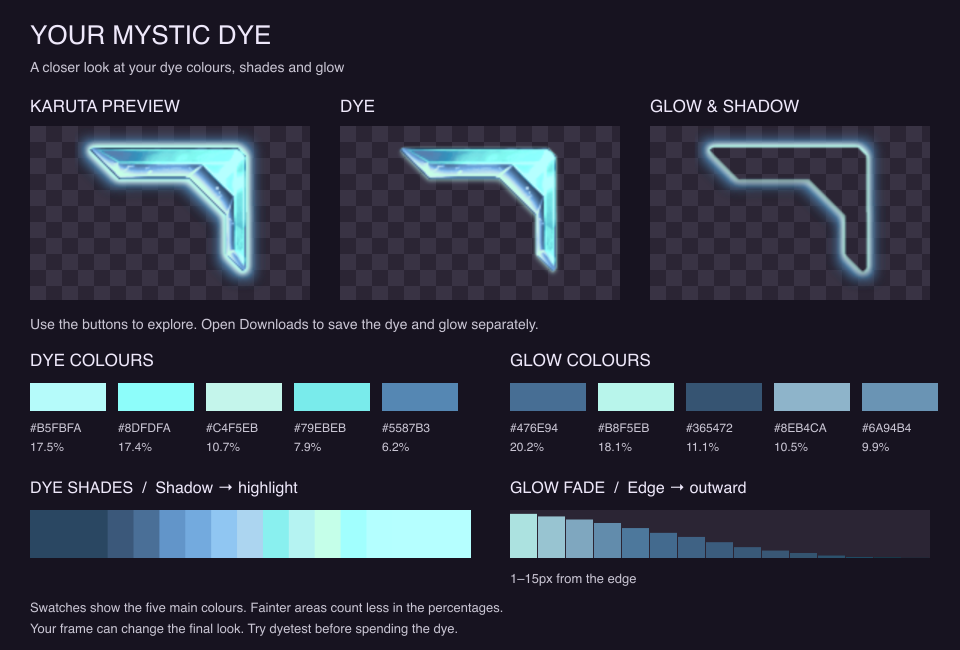
Overview shows Karuta's original preview beside the separate dye and glow, plus their main colours, the shade ramp and the glow fade. It also identifies the dye type and whether glow or edging was detected.
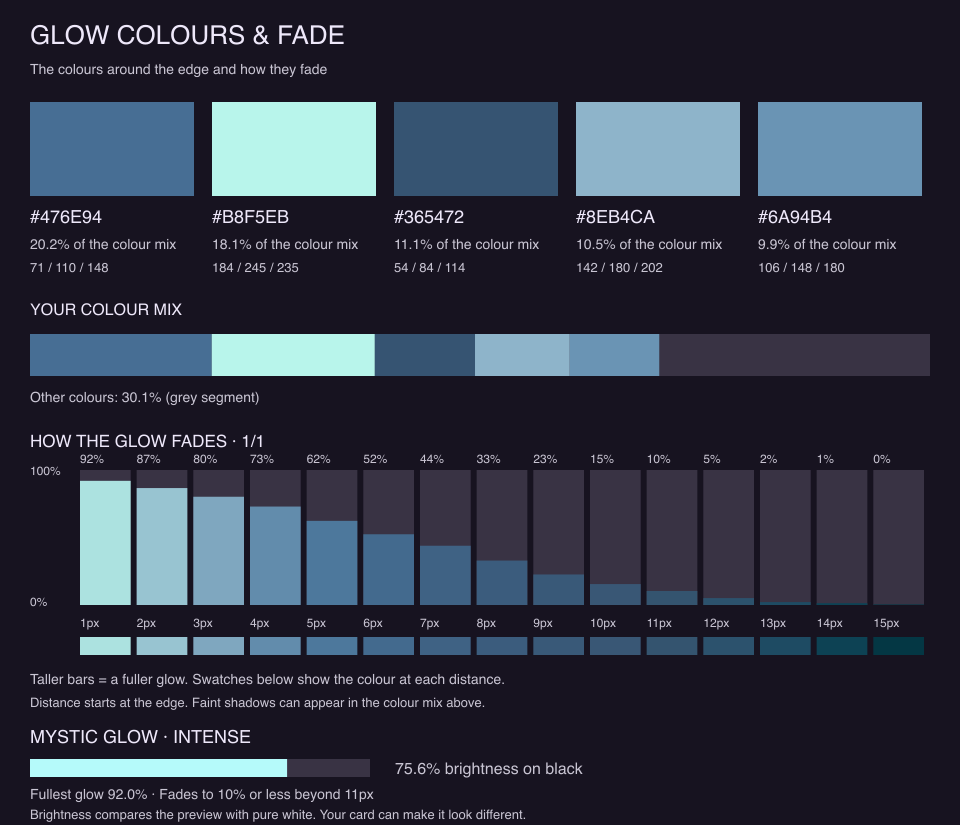
Mystic dyes also show Mystic glow strength: a descriptive rating from No visible glow, Subtle, Moderate, Strong to Intense. It includes brightness on black, the fullest glow's opacity and how far the glow reaches before fading below 10% opacity. This is an estimate from the sample, not an official Karuta rating; your card can make it look different.
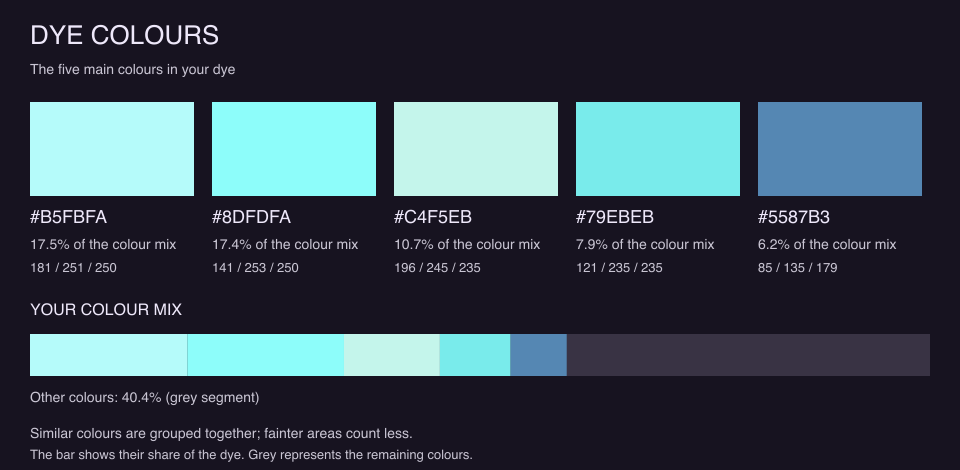
Colours shows the five main dye colours as swatches, with hex codes, RGB values and their share of the visible colour mix.
Fainter pixels count less, and similar colours are grouped. The five shares may not add up to 100%; the chart's grey segment represents the remaining colours. Use these swatches to compare palettes, rather than treating them as exact Karuta colour values.
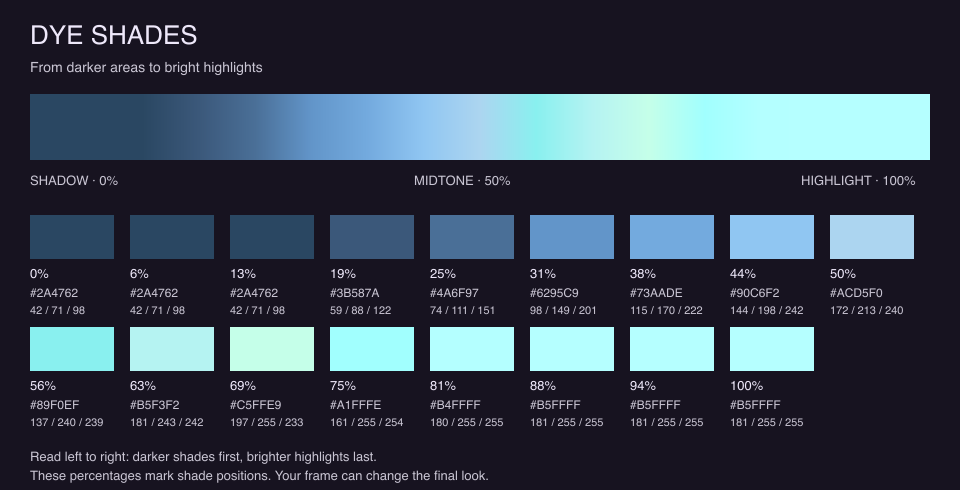
Shades shows the dye from its darkest areas to its brightest highlights, with a continuous ramp and individual colour stops.
Read left to right: 0% is shadow, 50% is the middle and 100% is highlight. These percentages mark shade positions, not the amount of each colour in the dye.
Glow shows the colours around the corner and how their opacity changes with distance from the edge. Taller bars mean a fuller glow; the swatches below them show its colour.
The chart shows up to 16 distances per page. Previous and Next appear when more pages are needed, and are disabled at the first and last page respectively. This sample fits on one page. Switching tabs resets the glow page.
Normal dyes can also have a coloured edge. If there is no noticeable glow, Keqing says so; the saved glow image may still contain a faint shadow or soft edge. The colour mix includes those faint pixels too. Mystic dyes also show their glow strength here.
Downloads gives you two separate images: the dyed frame corner with its surrounding glow removed, and the glow with any faint shadow or soft edge retained.
In Discord, tap an image to save it. Both PNGs keep the original 127 × 113 size and transparent background. The consoles here show the same exported layers.
Want to see the dye on your card? Use the Dye Tester before spending it. Your frame can change the final look.
kv Dye Details, then run adyeextractkv lookup; a sample with too little colour cannot be analysedKeqing needs Read Message History, Embed Links and Attach Files in the channel.