Wishlist System
Manage your Karuta character wishlists and discover who else wants the same characters
The Wishlist System helps you manage your Karuta character wishlists and discover who else wants the same characters. Perfect for finding trade partners!
Commands Overview
| Command | Aliases | Description |
|---|---|---|
addwish | wishadd | Add a character to your wishlist |
serieswish | wishseries, swish | Add an entire series to your wishlist |
deletewish | wishdel, delseries | Remove a character or series from your wishlist |
wishlist | wl, wish | View your or another user's wishlist (Character & Series) |
clearwish | wishclear, wishreset | Clear your entire wishlist |
syncwishlist | importwishlist, kwimport | Import your entire Karuta wishlist |
getwish | wishget | See who wishlisted a specific character or series |
Adding to Wishlist
Command: addwish
Aliases: wishadd
Add a specific character to your wishlist.
How to use:
- Use Karuta's
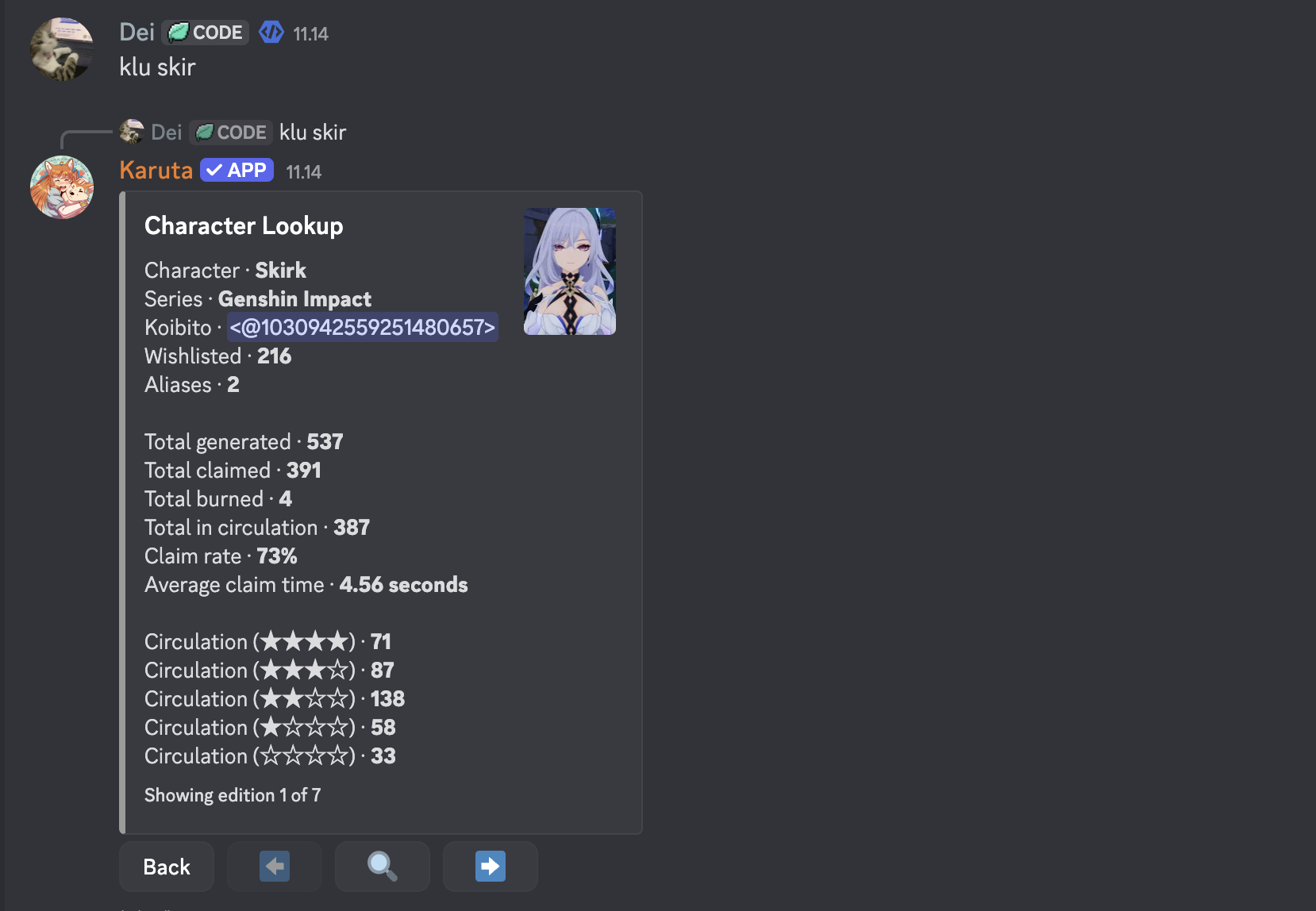
klucommand to look up a character - Reply to the Character Lookup embed with
addwish
Example:
> klu Skirk
[Karuta shows Character Lookup embed]

> [Reply to embed] [p]addwish
✅ Successfully added Skirk to your wishlist.

Command: serieswish
Aliases: wishseries, swish
Add an entire series to your wishlist. This means you are interested in ANY character from that series.
How to use:
- Provide the series name directly OR
- Reply to a card/lookup embed from that series
Example:
[p]serieswish Genshin Impact
[p]serieswish           (replying to a Genshin card)
Removing from Wishlist
Command: deletewish
Aliases: wishdel, wishdelete, seriesdel
Remove characters or series from your wishlist.

Option 1: Reply to Character Lookup
> [Reply to Karuta's Character Lookup embed] [p]deletewish
Note: To delete the Series instead of the character when replying, use
[p]deletewish -s
Option 2: Using Flags
[p]deletewish c=Character Name s=Series Name   # Delete Character
[p]deletewish s=Series Name                    # Delete Series
Option 3: Pipe Separator
[p]deletewish Character Name | Series Name
[p]deletewish Character Name
Clearing Wishlist
Command: clearwish
Aliases: wishclear, wishreset
Delete ALL entries (characters and series) from your wishlist.
How to use:
[p]clearwish
⚠️ Warning: You will be asked to confirm. This action cannot be undone.
Viewing Your Wishlist
Command: wishlist
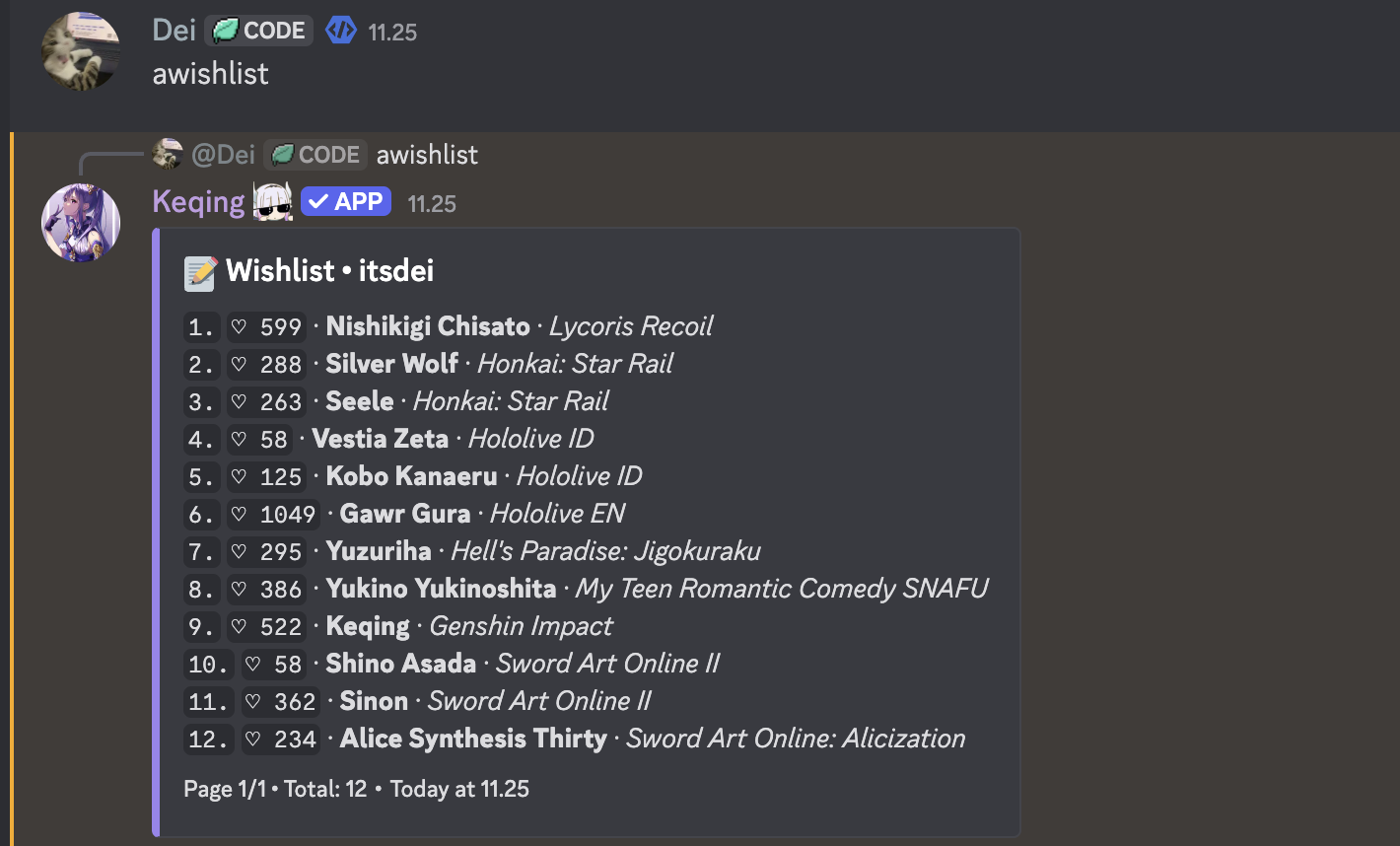
How to use:
[p]wishlist           # View your own wishlist
[p]wishlist @user     # View another user's wishlist
[p]wishlist <user_id> # View by user ID
Features:
- Toggle View: Click the button to switch between Character Wishlist and Series Wishlist.
- Pagination: Navigate through pages if you have many items.
What you'll see:
📝 Wishlist • Username#0000

`1.` ♡ 42 · **Hu Tao** · *Genshin Impact*
`2.` ♡ 38 · **Keqing** · *Genshin Impact*
...

Page 1/5 • Total: 45
Importing Your Karuta Wishlist
Command: syncwishlist
Aliases: importwishlist, kwimport
Already have a wishlist in Karuta? Import it all at once!
Step-by-Step:
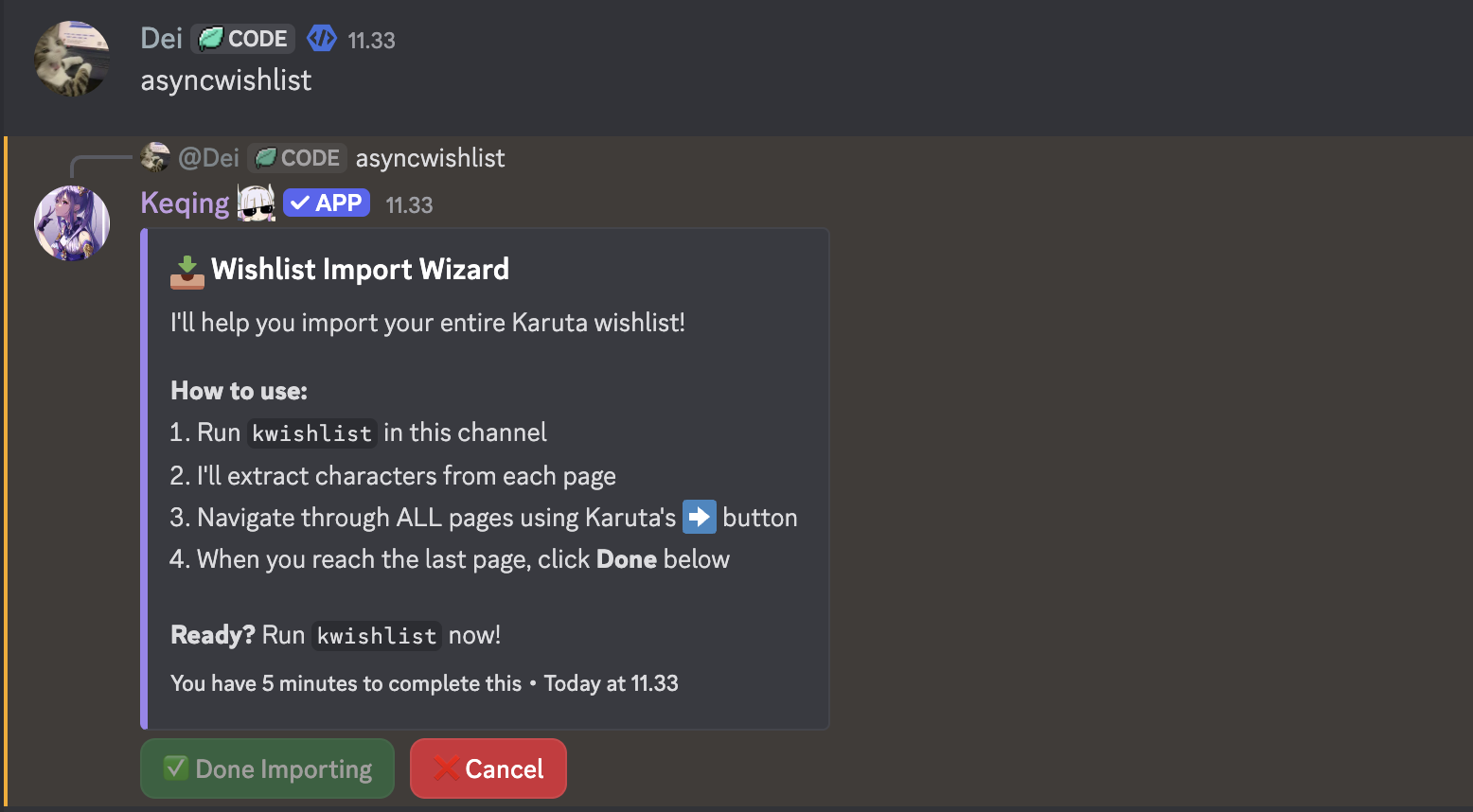
- Start the wizard:
[p]syncwishlist
-
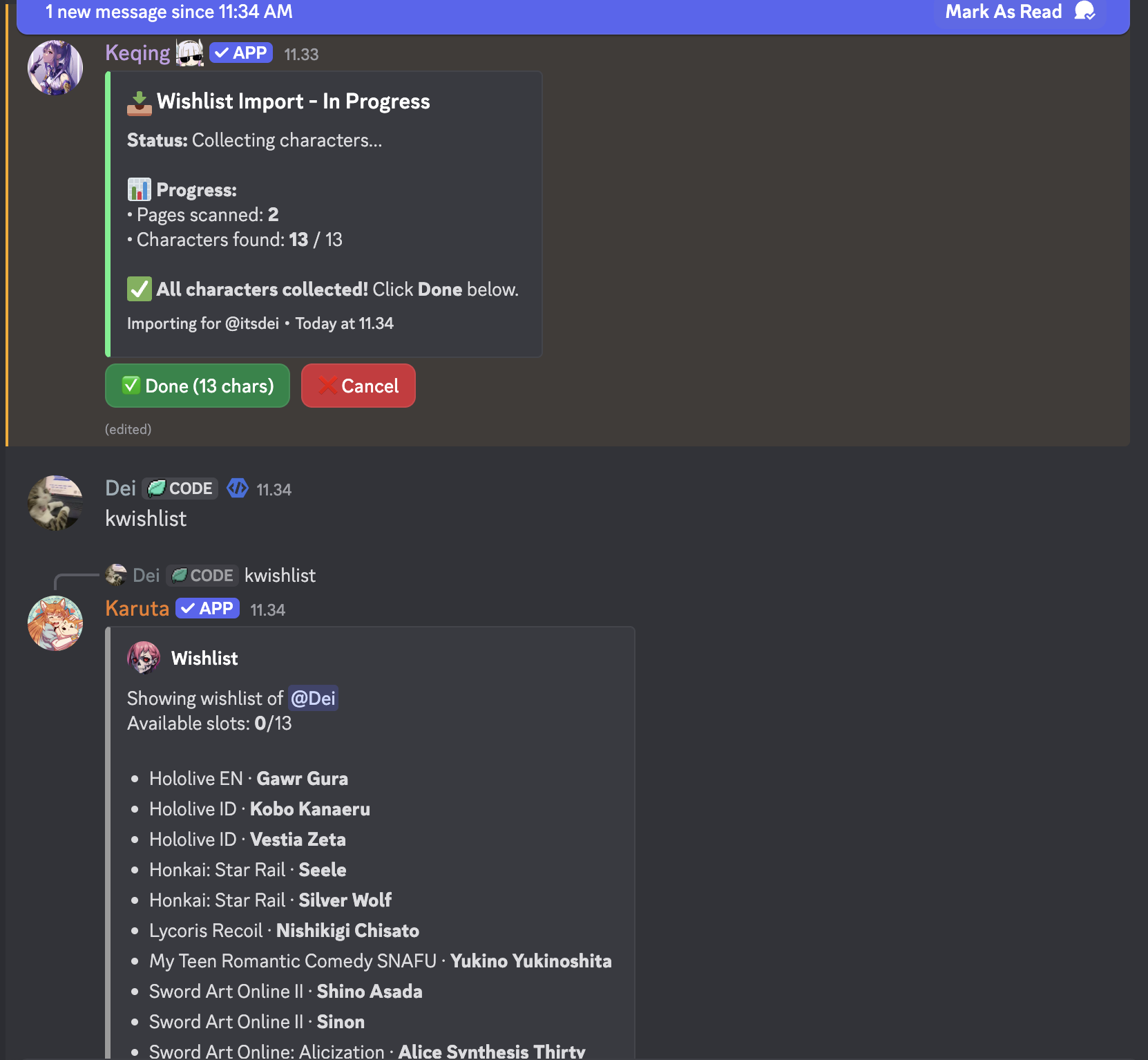
Run Karuta's wishlist command:
kwishlist -
Navigate through ALL pages:
- Use Karuta's ➡️ button to go through each page
- Watch the bot track your progress in real-time
- Click Done:
- Hit ✅ Done Importing when you've gone through all pages
- Or ❌ Cancel to stop
What you'll see during import:
📥 Wishlist Import - In Progress

Status: Collecting characters...

📊 Progress:
• Pages scanned: 5
• Characters found: 47 / 50

⏳ Keep navigating through pages, then click Done when finished.
Final results:
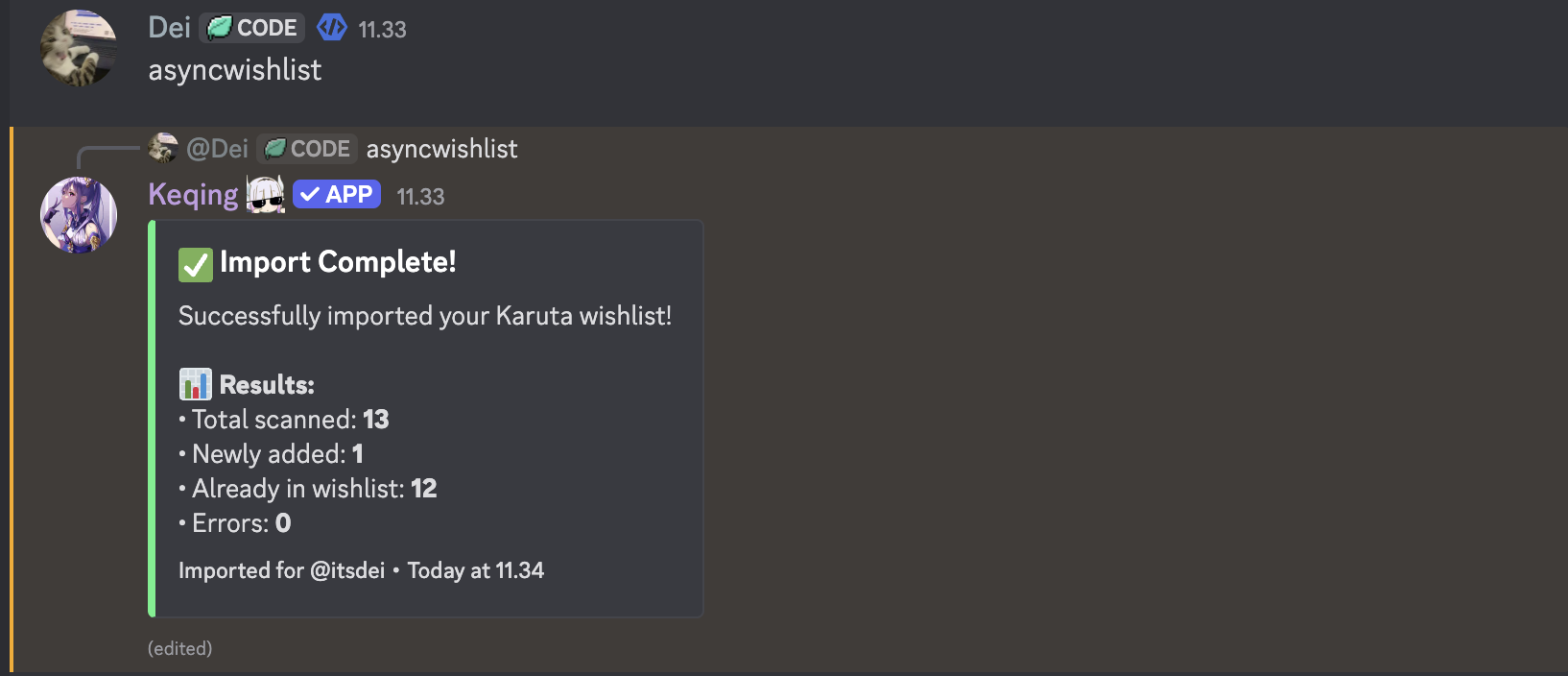
⏰ Note: You have 5 minutes to complete the import before it times out.
Finding Who Wants a Character ⭐
Command: getwish
Aliases: wishget
This is the main feature for trading! See exactly who wants a character before you trade or sell it.
How to use:
- Use Karuta's
klucommand to look up a character - Reply to the Character Lookup embed with
getwish
Example:
> klu Skirk
[Karuta shows Character Lookup embed]

> [Reply to embed] [p]getwish
What you'll see:
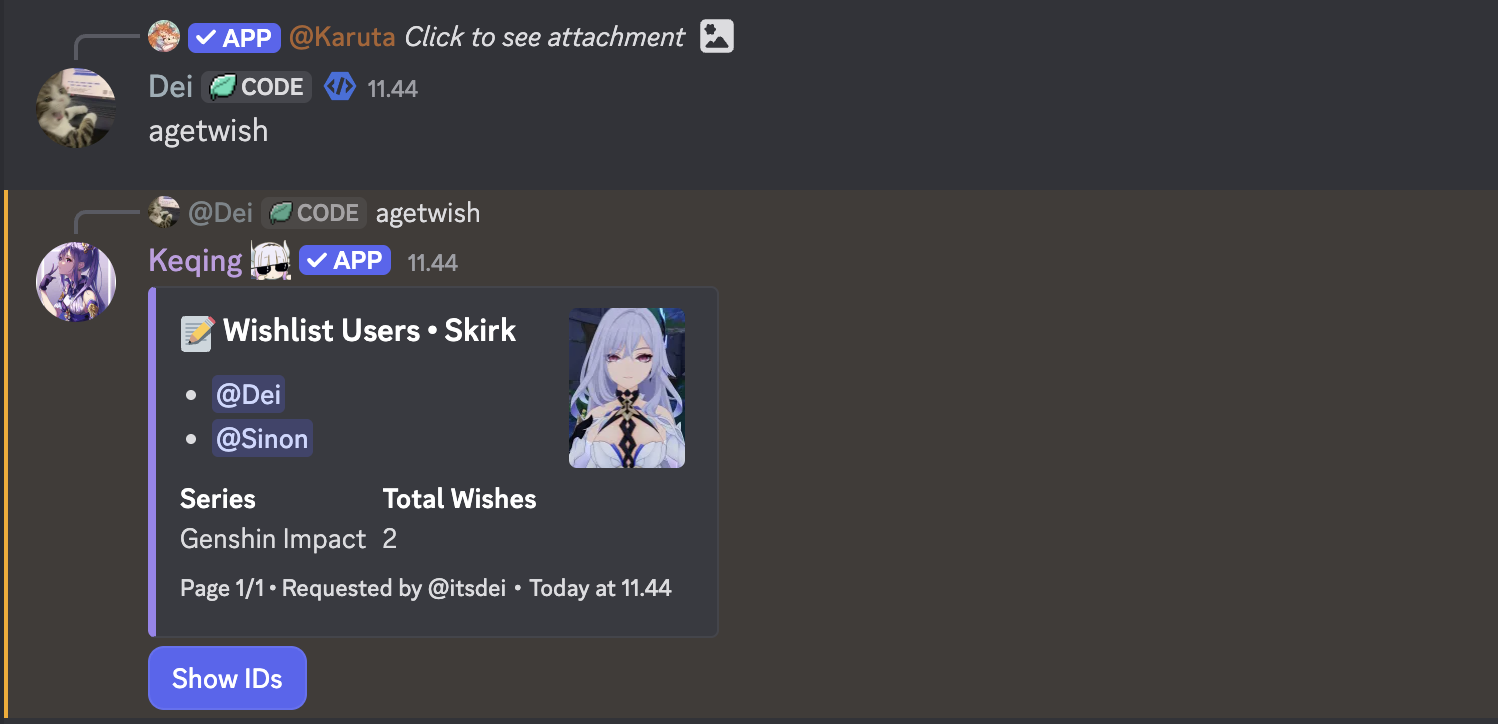
Features:
- Toggle Display: Switch between showing
@mentionsor raw user IDs - Series Wishers: Users who wishlisted the Series (but not the specific character) are marked with
📚.- Example:
@User 📚(Wants any card from this series)
- Example:
- Total Count: See exactly how popular a character is
Automatic Sync
Good news! When you use Karuta's native kwish command to add a character, the bot automatically syncs it to your wishlist here.
How it works:
> kwish Hu Tao
[Karuta]: @User, `Hu Tao · Genshin Impact` has been added to your wishlist.
[Bot reacts with ✅]  ← This means it synced!
No extra commands needed - just use Karuta normally and your wishlist stays up to date!
Common Issues
| Problem | Solution |
|---|---|
| "Invalid Usage" | Make sure you're replying to a Character Lookup embed |
| "Wrong Embed Type" | Use Karuta's klu command first, then reply to that embed |
| "Already Wishlisted" | The character or series is already in your wishlist |
| "Character Not Found" | The character might not be in our database yet |
Tips & Best Practices
-
Reply to embeds for accuracy - Always reply to Character Lookup embeds when adding or removing characters. This ensures the correct character is selected.
-
Import first, then add - If you already have a Karuta wishlist, use
syncwishlistto import everything at once, then useaddwishorserieswishfor new additions. -
Check demand before trading - Use
getwishto see how many people want a character. High demand = better trades!- Look out for
📚users—they might buy any card from that series!
- Look out for
-
Just use Karuta normally - The auto-sync feature means you can just use
kwishand your wishlist here stays updated automatically. -
Typos are okay - The system uses fuzzy matching, so minor typos in character/series names usually still work!